Payroll - step 3: Create employer(s)
Importing from another program? Skip this step.
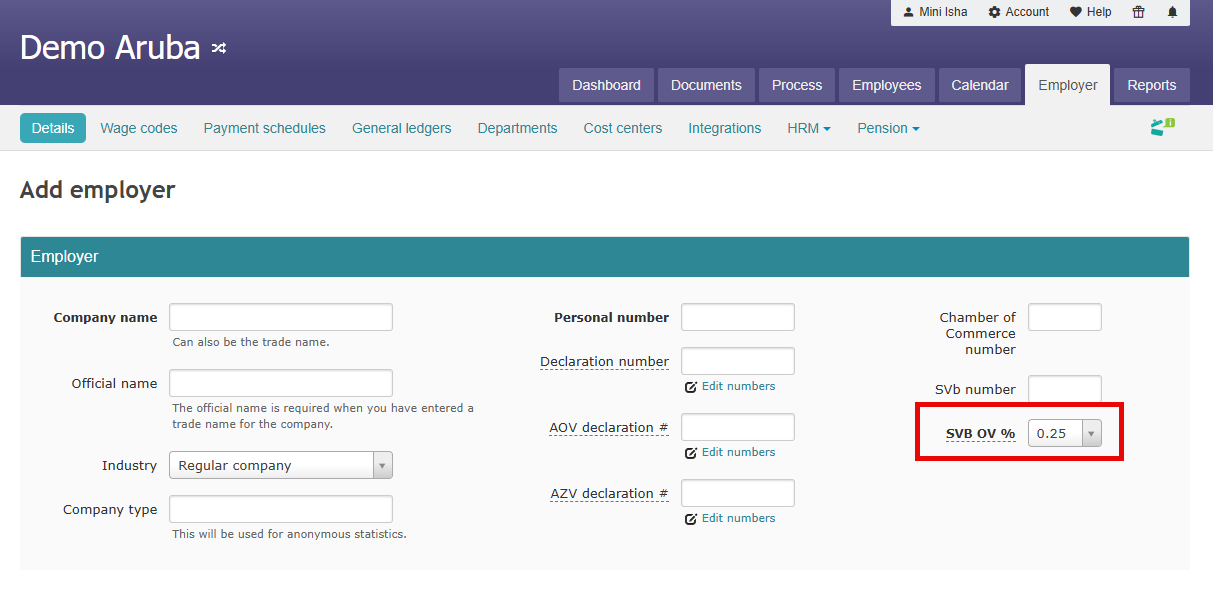
One Employer
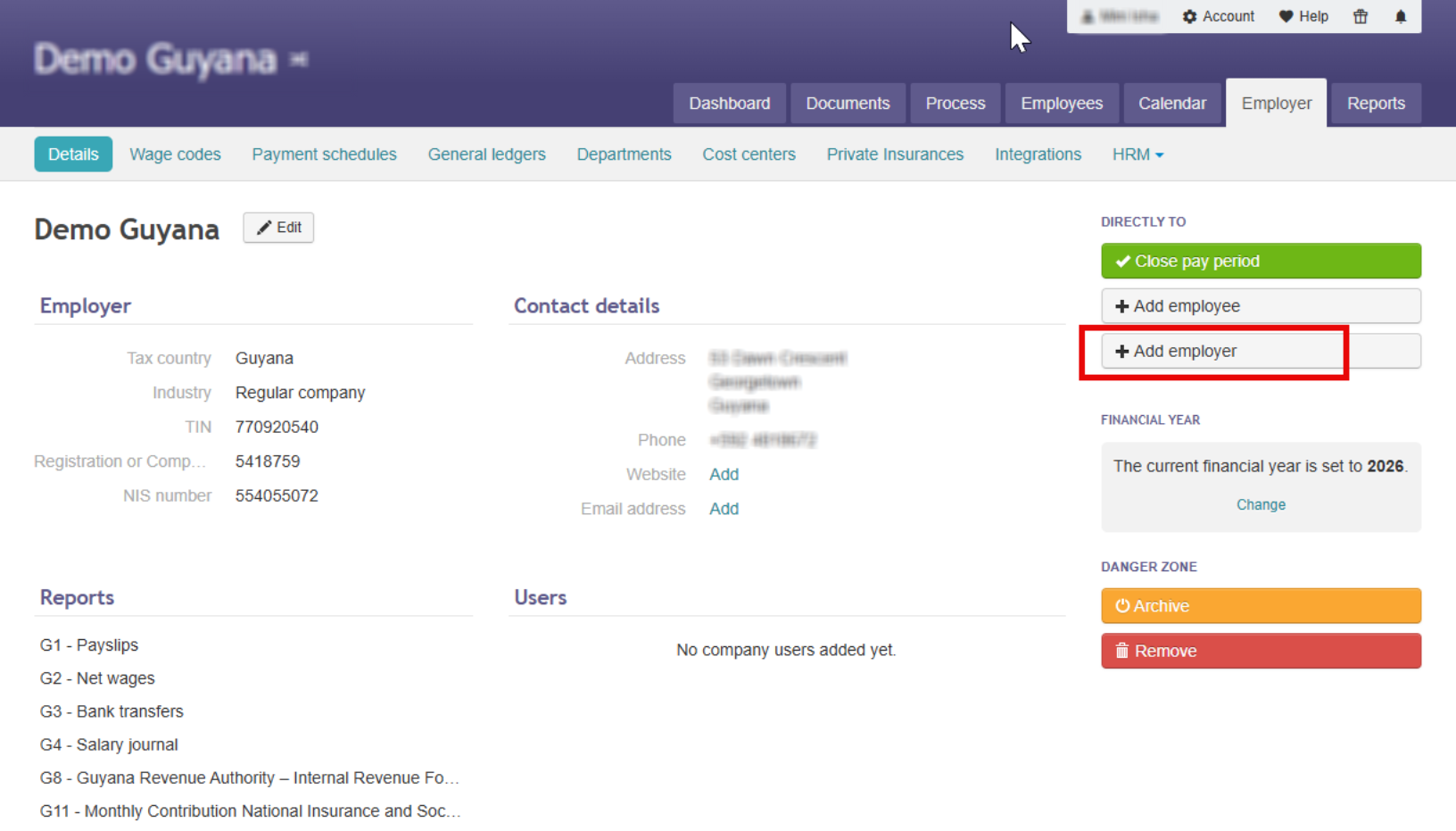
Creating a single employer is simple.
- Click on the Employer tab in Celery.
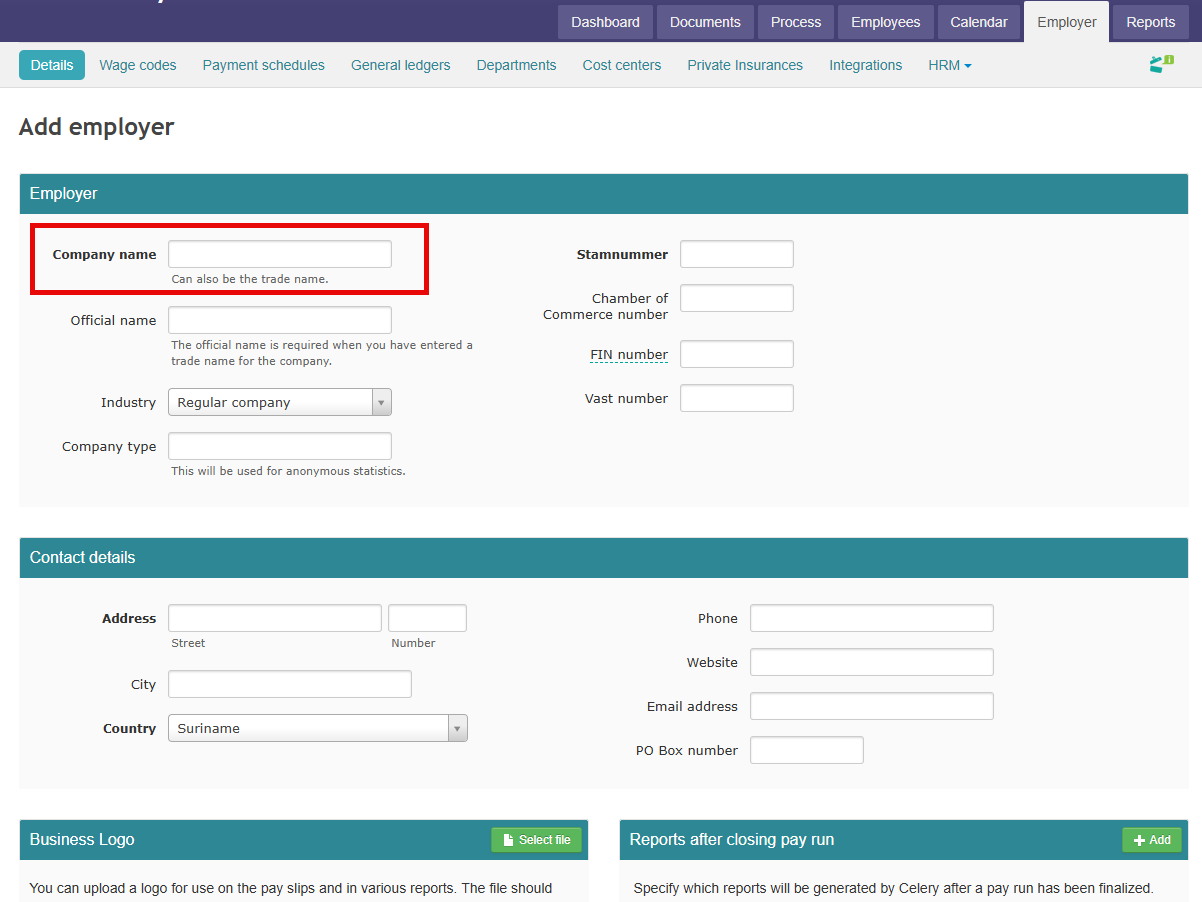
- Fill in all the fields.
Keep in mind:
- Fields in bold are required — you must fill these in.
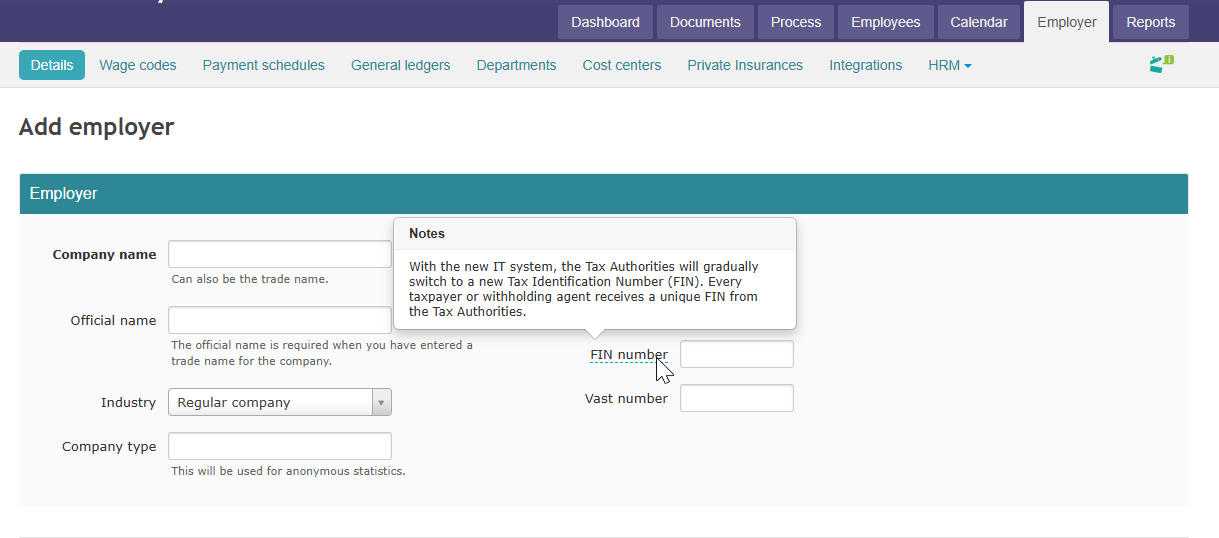
- If a label has a line under it, hover your mouse over it to see an explanation.
- Don't forget to enter or update the SVb / SVB / SZV OV% while creating the employer (applies to Aruba, Curaçao, and St. Maarten).
Multiple Employers
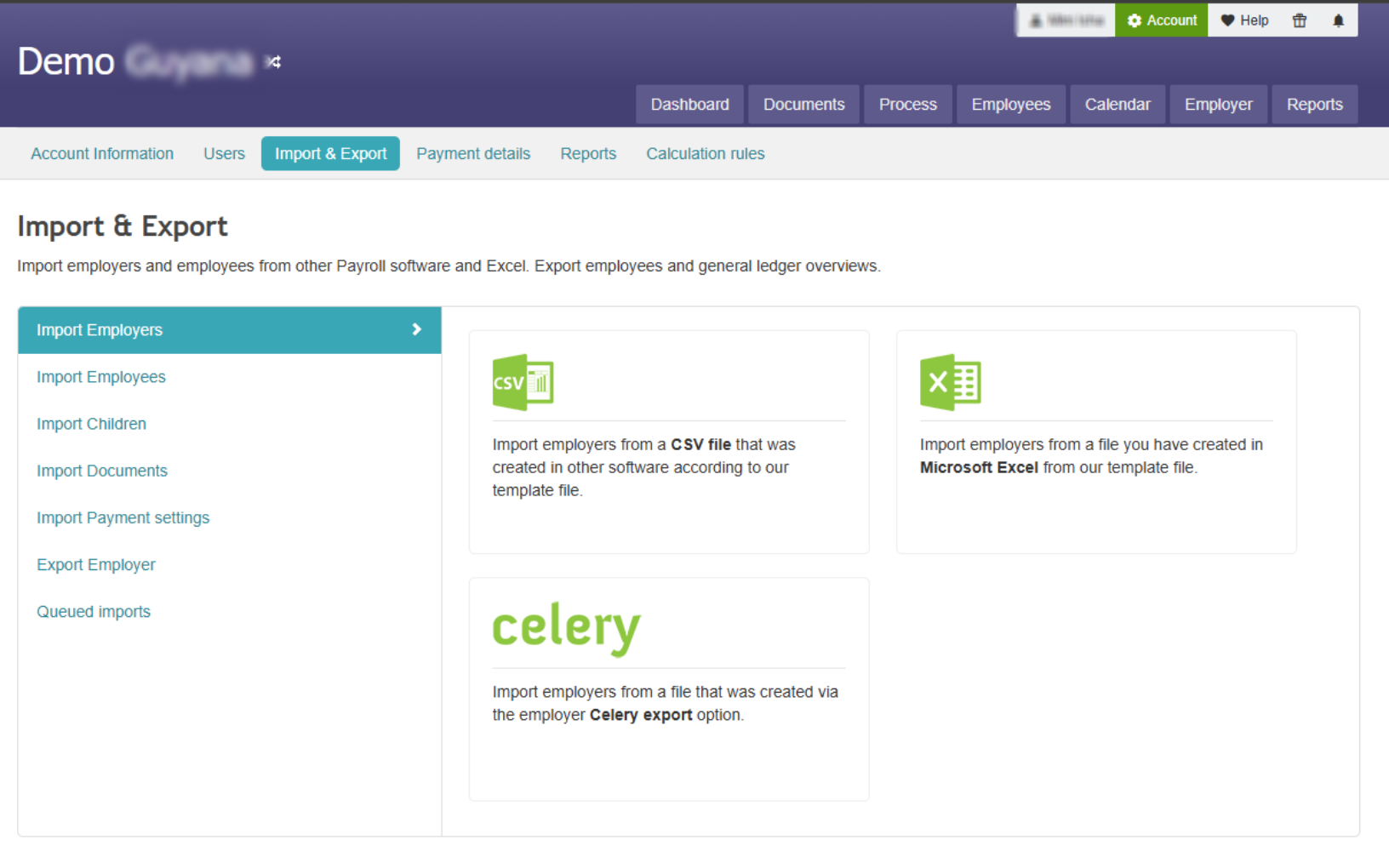
You can import multiple employers at once using an Excel or CSV file.
- Go to Account → Import & Export → Import Employers.
- Download the example import file shown there.
- Fill in your employer data.
- Upload the file.
Important: Do not add or remove any columns from the file.
After creating an employer
Important: Complete your employer details before you start!
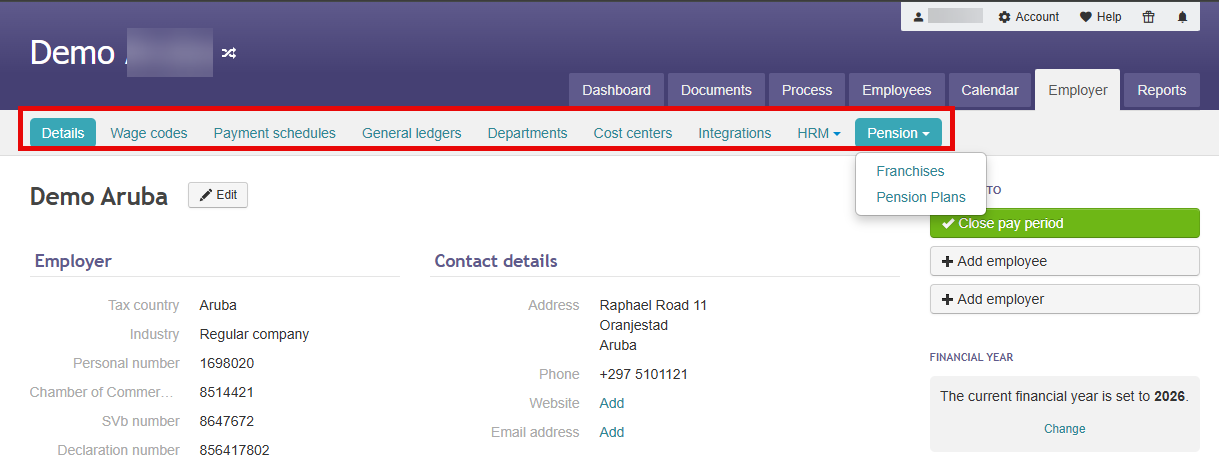
Once you have saved the employer, you will see a row of tabs at the top. Check each tab and fill in the information that applies to your company. Go through them one by one.
1. Wage codes Add the wage codes that apply to this employer.
2. Payment schedules Set up when and how often employees get paid. For example: weekly or monthly.
3. General ledgers Link the correct account numbers. These are used for bookkeeping.
4. Departments Add the departments that exist within this company.
5. Cost centers Add cost centers if the company tracks costs per team or project.
6. Integrations Connect any external tools or systems the employer uses.
7. HRM (click the arrow to see all sub-tabs) Fill in all the tabs underneath HRM, such as:
- Documents
- Holidays
Mandatory Leave - Time-off policies
- Custom categories
8. Pension (click the arrow to see all sub-tabs) Fill in all the pension settings, such as:
- Franchises
- Pension plans
Tip: Work from left to right. Complete each tab before moving to the next one.