Create your own wage code
In Celery, you can make your own wage code by copying an existing template. It only takes 3 steps.
Step 1: Choose a template
Every wage code has certain fixed features. So it's important to copy a template that already has the right features for what you need.
To help you choose, see the an overview of commonly used templates and their features underneath.
Step 2: Copy the template
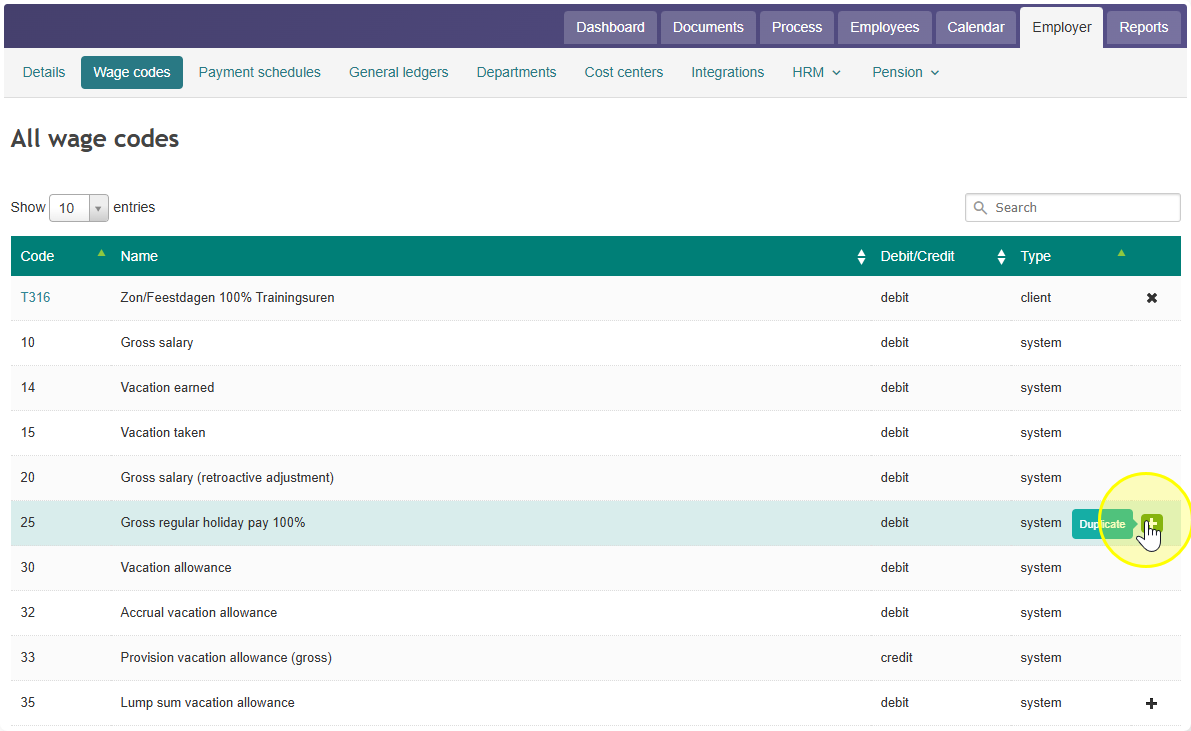
- Go to Employer → Wage codes.
- Find the template you want to use. Every template has a [+] button next to it.
- Click [+] to make a copy. Your copy appears at the top of the wage code list.
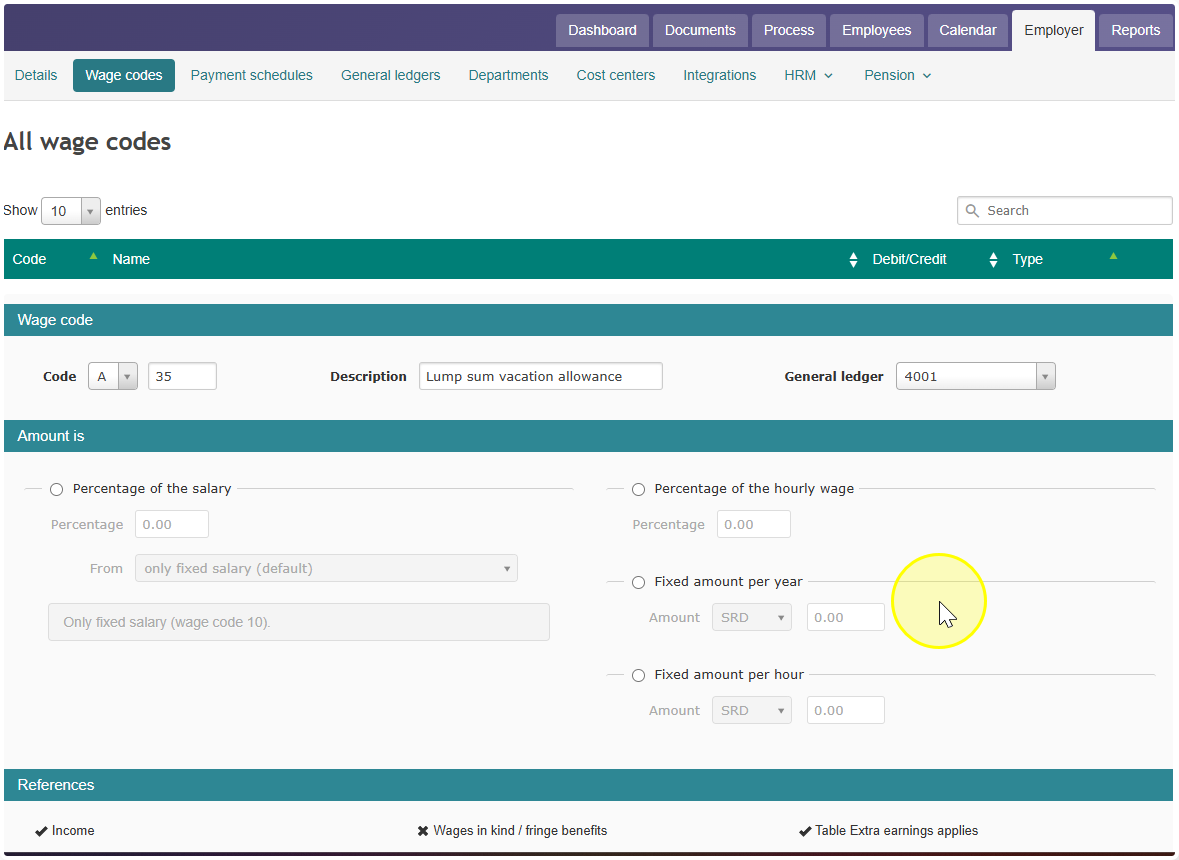
Now you can start building your own wage code. You can change the letter, the number, the description, and the general ledger code.
You also choose how the wage code should work. There are 4 options:
- Percentage of the salary
Use this when the amount should always be a fixed percentage of (part of) the salary. For example: an allowance of 2% of the monthly income. You don't need to create a new wage code every time the salary changes — Celery automatically uses the correct salary each time. - Percentage of the hourly wage
Use this when you only want to enter a number during the payroll run, and let Celery calculate the amount. For example: a standby allowance of 90% of the hourly wage. Celery works out the right amount for each employee automatically. - Fixed amount per year
Use this for a fixed amount that gets paid out (or deducted) every period, throughout the year — for example, a union contribution deducted from every payroll run. Enter the total amount for the whole year, not the amount per period. This amount cannot be changed in the employee's fixed data, but it can be adjusted during a specific payroll run. - Fixed amount per hour
Use this for a fixed amount per hour that's the same for every employee — for example, paying minimum wage for travel hours. You only enter the number of hours during the payroll run, and Celery calculates the amount. If the minimum wage changes, you just update it in this one wage code, and all future travel-hour payments update automatically. This amount cannot be adjusted per employee.
Step 3: Save
Click Save, and your wage code is ready to use.
Wage codes you create yourself will always start with a letter.
If something goes wrong
Send a screenshot of the wage code you created to support@celerypayroll.com. Explain what you think went wrong and what you're trying to achieve with this wage code. Someone from support will help you set it up correctly.