How to Reopen a Closed Pay Run
- Go to Process in the menu.
- Select Progress & History.
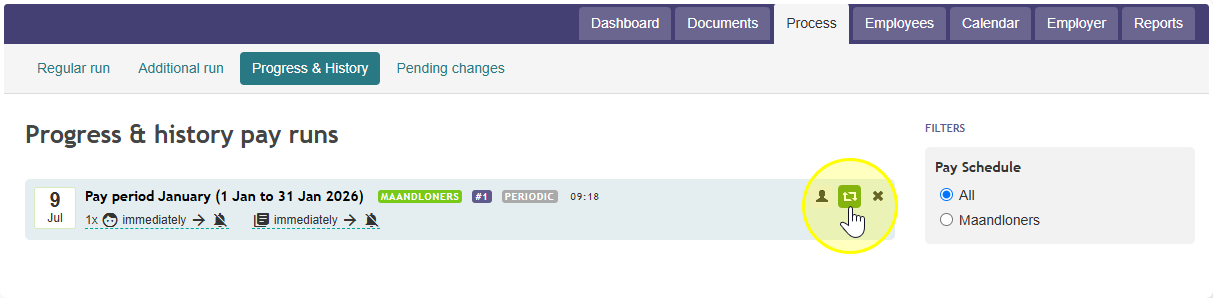
- Move your mouse over the pay run you want to reopen. A green Reopen pay run button will appear.
- Click the green Reopen pay run button.
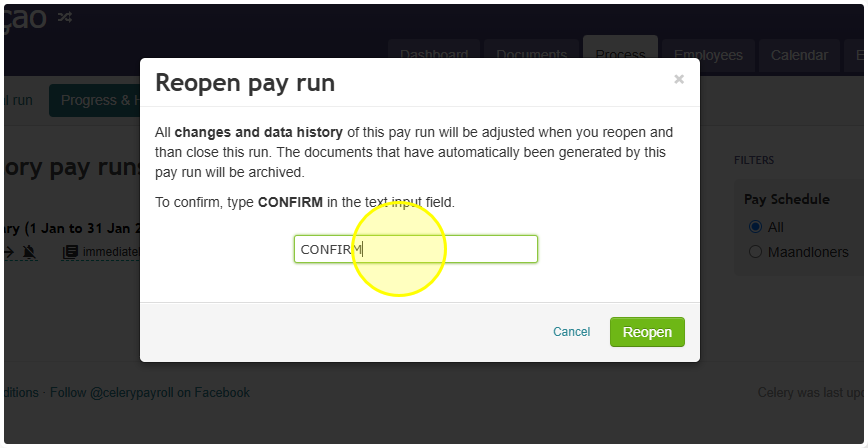
- Type the word CONFIRM in the box that appears.
- The pay run has reopened.
Note: You can now make changes, including changes to the employee's fixed data, just like you normally would.
- When you are done, close the run again as usual.
Note: When you close the run again, the system may ask what to do with any differences that came up in the tax and premium declarations. Check these carefully before choosing.
Did you find it helpful?
Yes
No
Send feedback Sorry we couldn't be helpful. Help us improve this article with your feedback.