Payroll - step 1: How to Create a Trial Account in Celery
What is a trial account?
A trial account is a free test account from Celery.
You can try the platform without paying. This way you can see how everything works before making a decision.
What do you get with a trial account?
- A free account at www.celerypayroll.com
- You can choose between a demo employer - this is a fake company pre-filled by us with some data so you can practice, or a new employer - this is an empty account that you can set up with your own data
- You can try both the Payroll module and HRM module without any costs
Ready to get started for real?
Then you convert your trial into a paid account. This is called "upgrading".
Note: If you don't choose to upgrade, your trial period will automatically expire and your account will be removed.
Here is how you do it:
1 — Create Your Account
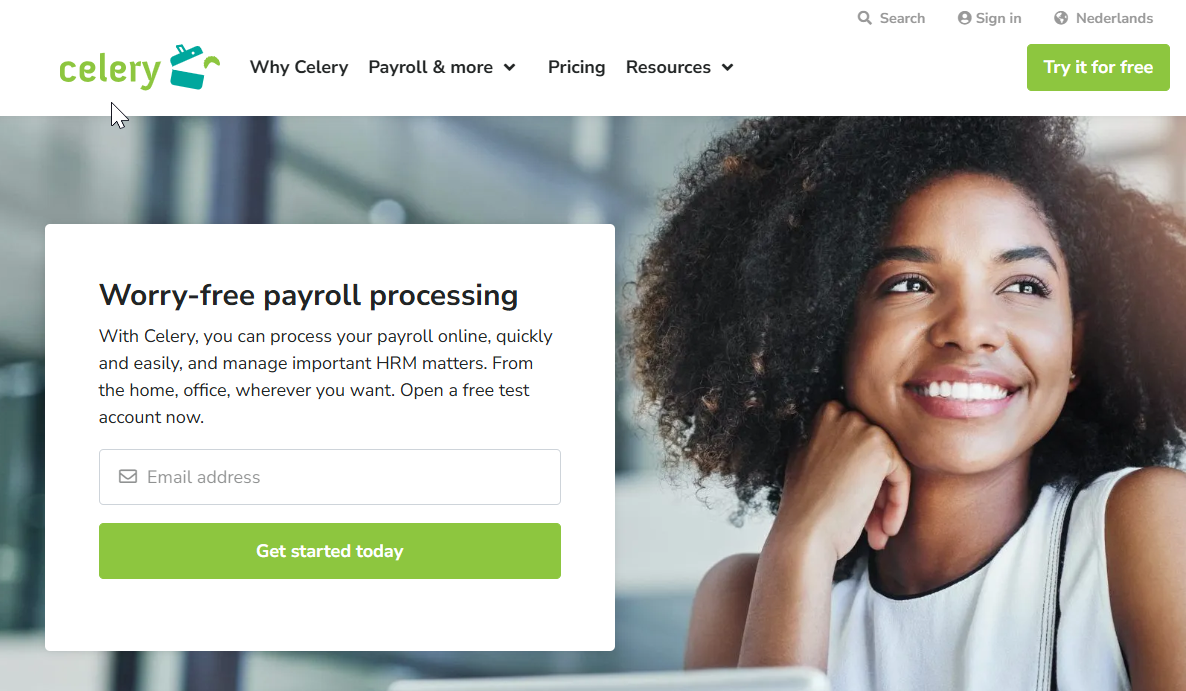
- Go to https://www.celerypayroll.com/en/
- Indicate that you are not a robot, then click Create account
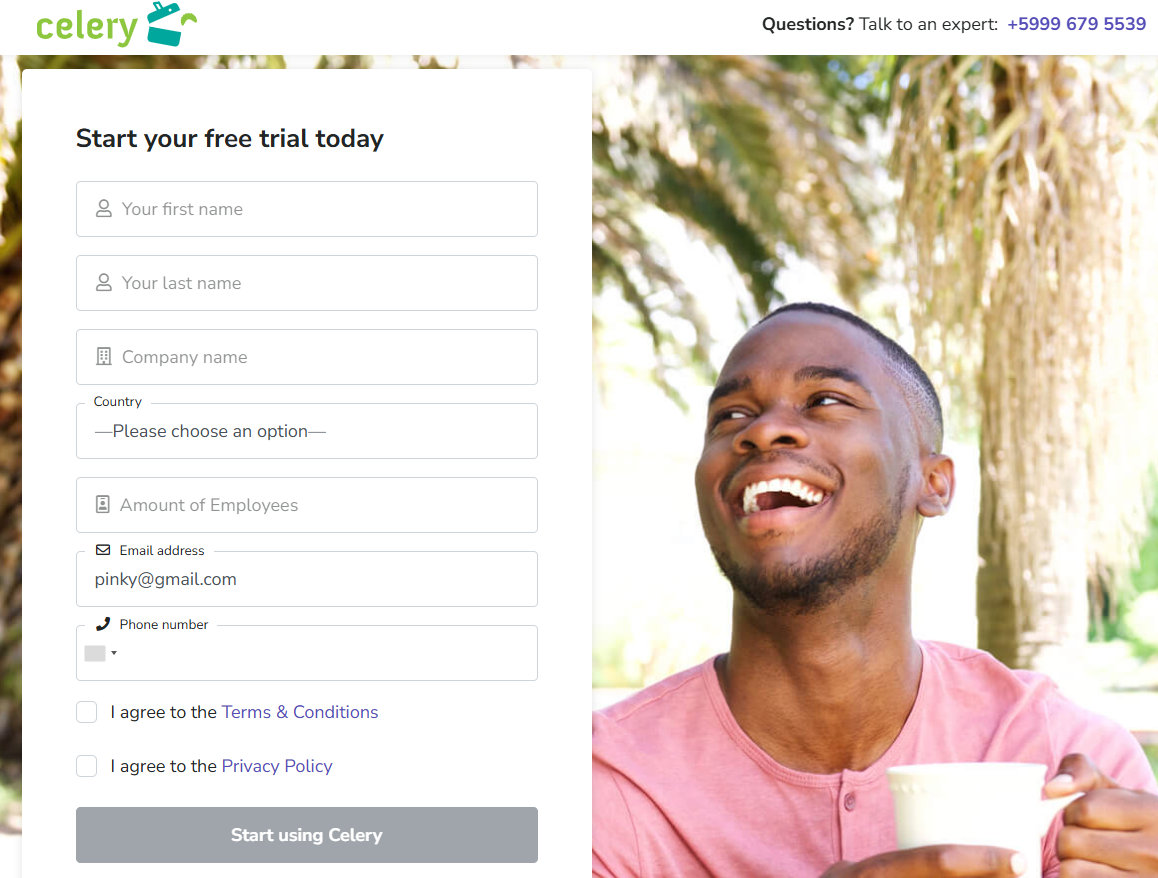
- Fill in the following fields:
- First name
- Last name
- Company name — this will also be your personal login URL. Use a short name or abbreviation. You can always fill in your full trade name later under the Employer tab.
- Country
- Amount of employees
- Email address
- Phone number
- Agree to the terms and conditions
- First name
- Click Start using Celery
2 — Follow the Celery Setup Steps
After your account is created, Celery will guide you through the setup process. Follow the steps on your screen. Check your name and set a password.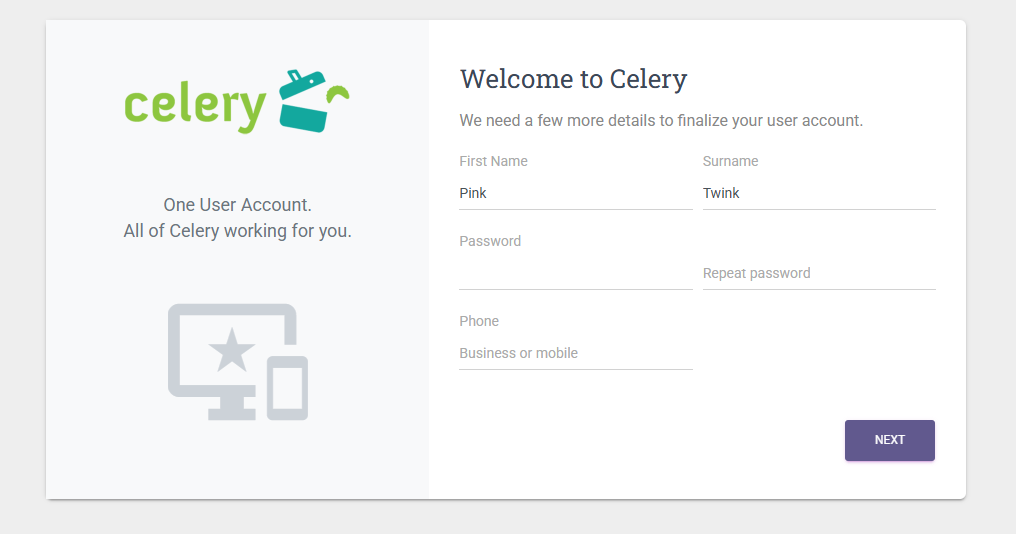
You will then be asked to make a choice. You have two options:
Option 1 — Example employer
- Choose this if you want to see how Celery works first.
- The system will automatically fill your account with sample data.
- A demo employer and a few employees will be created.
- Useful if you are not yet sure what to expect.
Option 2 — New employer
- Choose this if you want to start with your own data right away.
- No sample data will be created.
- Useful if you already know how it works and want to get started immediately.
Click the CONTINUE button under the option that suits you.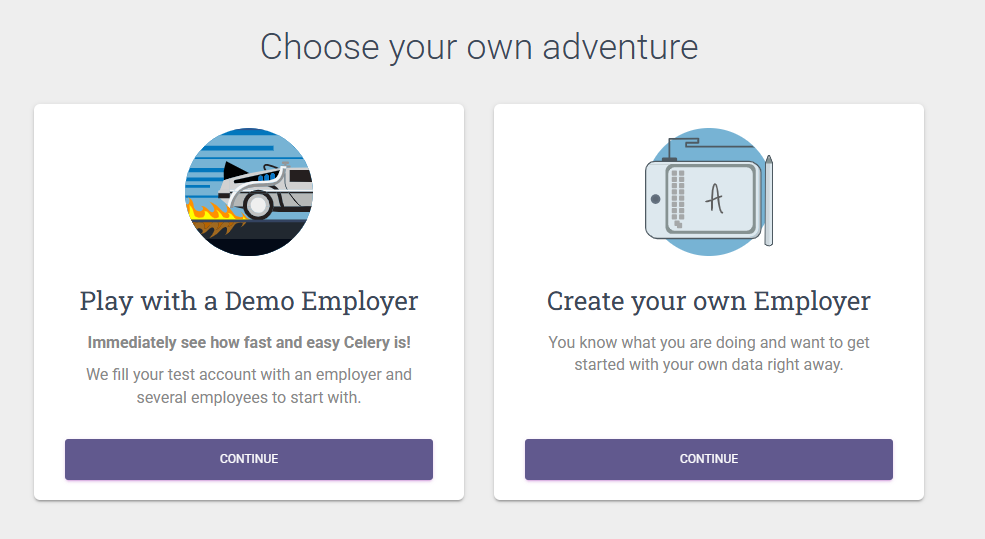
3 — Upgrade Your Trial Account
When you are ready to go live, upgrade your trial account by adding your billing information.
For full instructions, see: Payroll – Step 2 – Upgrade a Trial Account